Complete Guide to OTA System Upgrade
Complete the system upgrade using the OTA App (latest installation package) / System Update (if the latest installation package is not installed) on your device.
Important Reminder: Do NOT perform upgrades via System Update located in Settings. You must check, download and install updates through the OTA App to follow the correct upgrade procedure for this device.
I. Pre-Upgrade Preparation
Before upgrading, please confirm the following:
· The device has sufficient battery power.
· A stable Wi-Fi or accessible network is connected.
· Avoid powering off, restarting the device or force-closing the OTA App during the upgrade.
· Select Allow Notifications when launching the OTA App for the first time to receive upgrade alerts.
II. Accessing the Upgrade Interface
1. Locate the OTA App in the device’s application list.
2. Tap to open the OTA App.
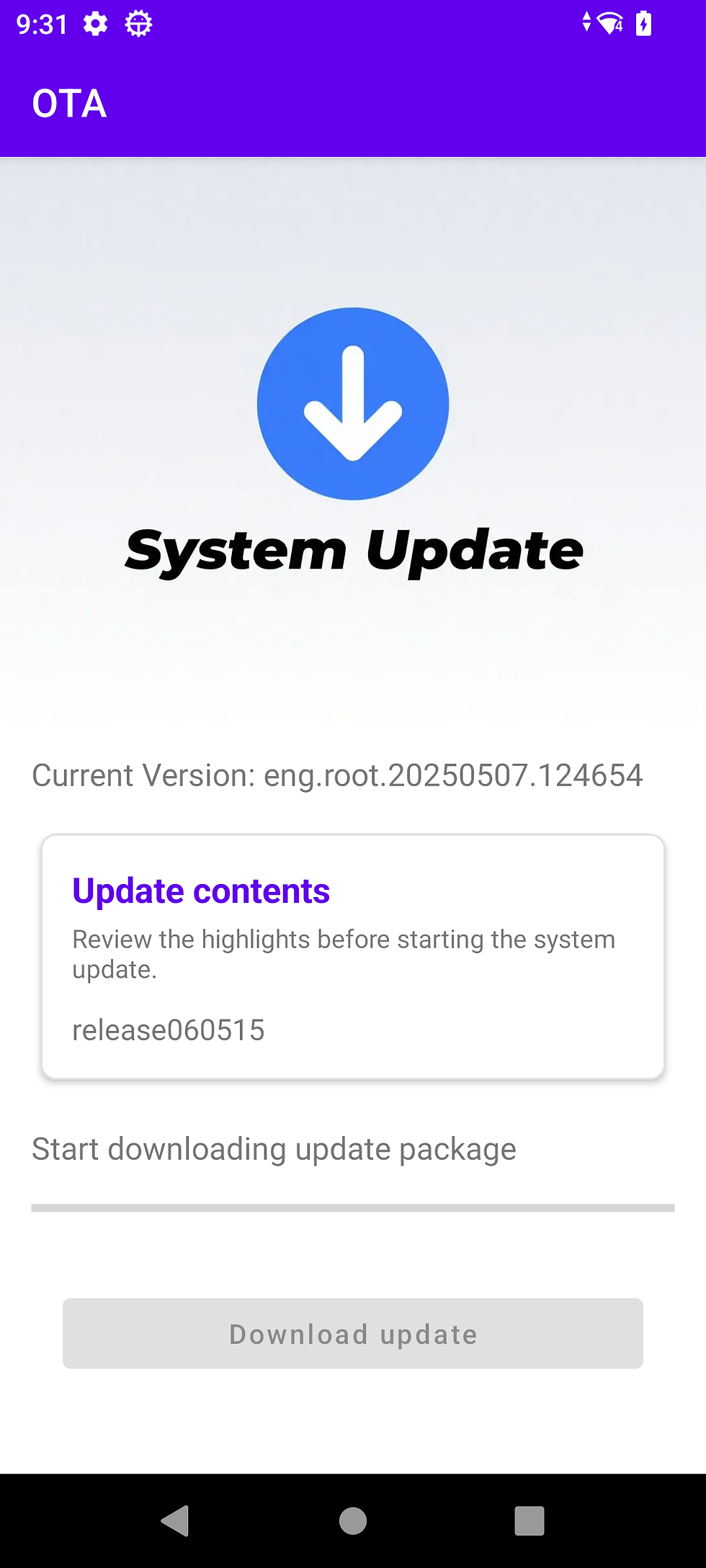
3. The home page displays:
· Current system version
· Update notes for this release
· Current upgrade status
· Buttons for checking updates or downloading updates

III. Manually Check for System Updates
1. Open the OTA App.
2. Confirm the network connection is active.
3. Tap Check for Updates.
4. The app will connect to the upgrade server and verify whether a new version compatible with your device is available.
Check Results:
· If You are running the latest version appears, no upgrade is required for the time being.
· If New Version Detected appears, read the update notes first, then proceed with the download after confirmation.
If a no-network prompt appears, reconnect to the network and tap Check for Updates again.

IV. Download and Install the Update
After a new version is detected:
1. Tap Download Update.
2. Wait for the upgrade package to finish downloading; the progress will be displayed on screen.
3. Once the download completes, the app will automatically prepare and install the system update.
4. Keep stable network and power supply during installation. Do not close the app or disconnect the device.
5. When the page shows Update completed. Please restart your device, tap Restart.
6. The device will reboot and finish the system upgrade.

V. Actions Upon Receiving an Update Notification
When New system version detected appears in the notification bar:
1. Tap the notification.
2. The system will launch the OTA App.
3. Check the version number and update notes.
4. Tap Download Update.
5. Tap Restart once installation finishes.
If you do not receive any notification, you may directly open the OTA App and tap Check for Updates.
VI. Frequently Asked Questions
1. Why can’t I update via Settings?
The System Update entry in Settings is incompatible with the upgrade workflow of this device. Always use the OTA App. It verifies upgrade packages matched to your device, displays release notes, downloads the package and completes installation.
2. No network prompt after tapping Check for Updates
Confirm Wi-Fi, cellular network or Ethernet is connected and can access the update server. After network recovery, reopen the OTA App and tap Check for Updates.
3. Download failure or stalled progress for a long time
Check network stability; preferably use a reliable Wi-Fi network. Once the network is restored, re-enter the OTA App to check and download the update again.
4. Can I power off the device during download or installation?
This is not recommended. Keep the device powered on with stable network access during download and installation. Do not power off, restart the device or force stop the OTA App.

I think you folks need to focus on image stabilisation, in its current form it is impossible to use this camera hand-held because it creates unbearable jerkiness in the output. This is not as you advertise this device, considering its price, automatic stabilisation should work.
Downloaded system update and installed. Crashes! Says "System Update keeps Stopping"
2025 XCAM currently on 1.0.1.39